Contact form widget
Every feature of the contact form, and when to use it.
A form on your site for messages, quotes, bookings, sign-ups or surveys. Every message lands in Leads and in your email. Below is every feature in the three tabs, what it does and when it helps.
Make one
- 1New widget, Form. Pick a ready form (contact, quote request, booking, event sign-up and more) or start blank.
- 2In Build, the questions. In Style, the look. In Settings, what happens after sending and who gets the email.
- 3Press Save, then add it to your website from the Install tab.
1. Build: the questions
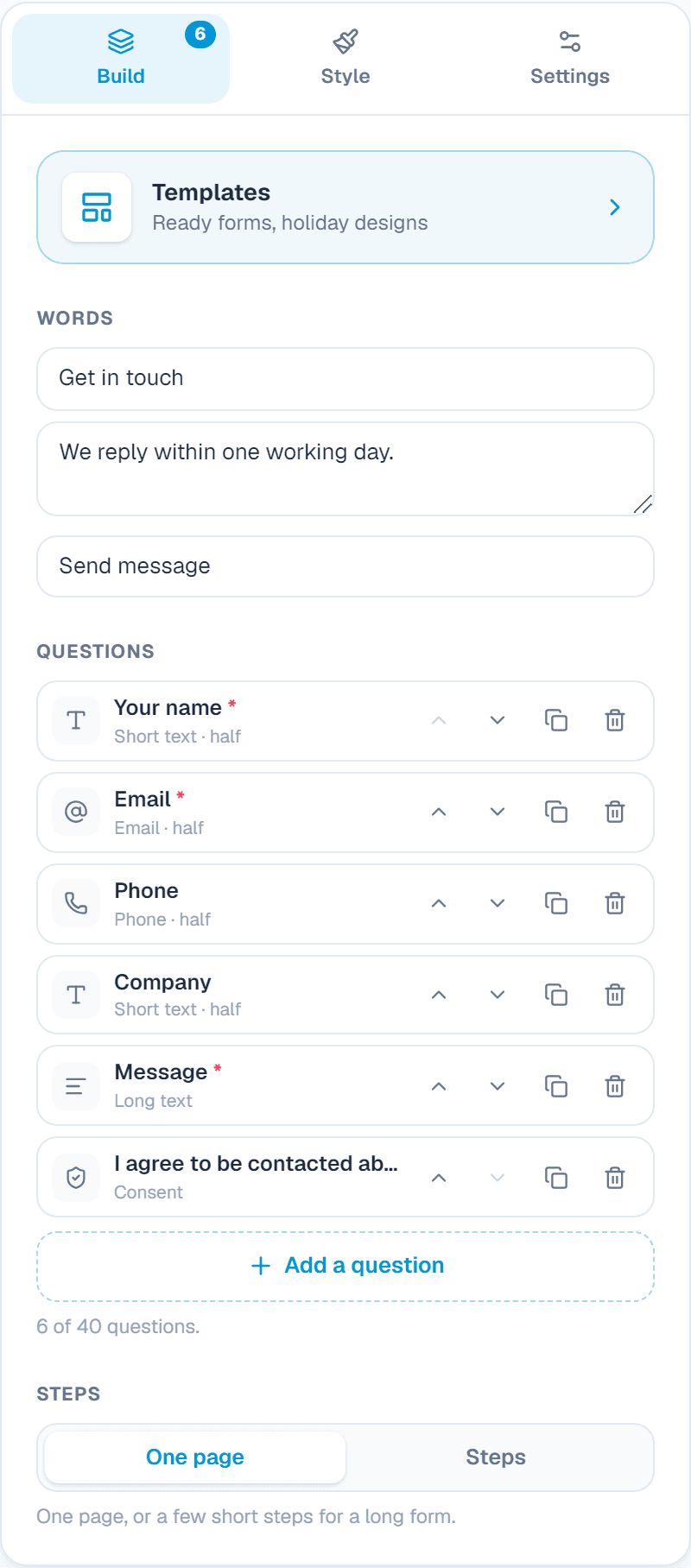
Templates
What it does: Ready-made designs at the top of the first tab. One click swaps the look and the example content; you then change the words.
When to use it: Start from a design that is close to what you want instead of an empty widget.
Words
What it does: The heading, the line under it and the send button's words.
When to use it: Say what happens next: We reply within one working day.
Questions
What it does: Short and long text, email, phone (with country code), number, website, country, dates and times, dropdown, one choice, several choices, star rating, slider, switch, consent, signature, hidden value, rich text, heading and paragraph.
When to use it: Ask only what you need to reply well. Every extra question loses some people.
Each question
What it does: Required or not, half width (two side by side), a placeholder, help text, choices shown as a list, buttons or cards, date rules (future only, weekdays) and an input pattern like (999) 999-9999.
When to use it: Put name and email side by side to make a form look shorter.
File uploadPaid plans
What it does: Visitors attach a file or a photo.
When to use it: Photos of a job for a repair quote, or a CV.
StepsPaid plans
What it does: Split a long form into a few short steps, with a progress line.
When to use it: A long quote form feels easier one step at a time.
2. Style
Fields and labels
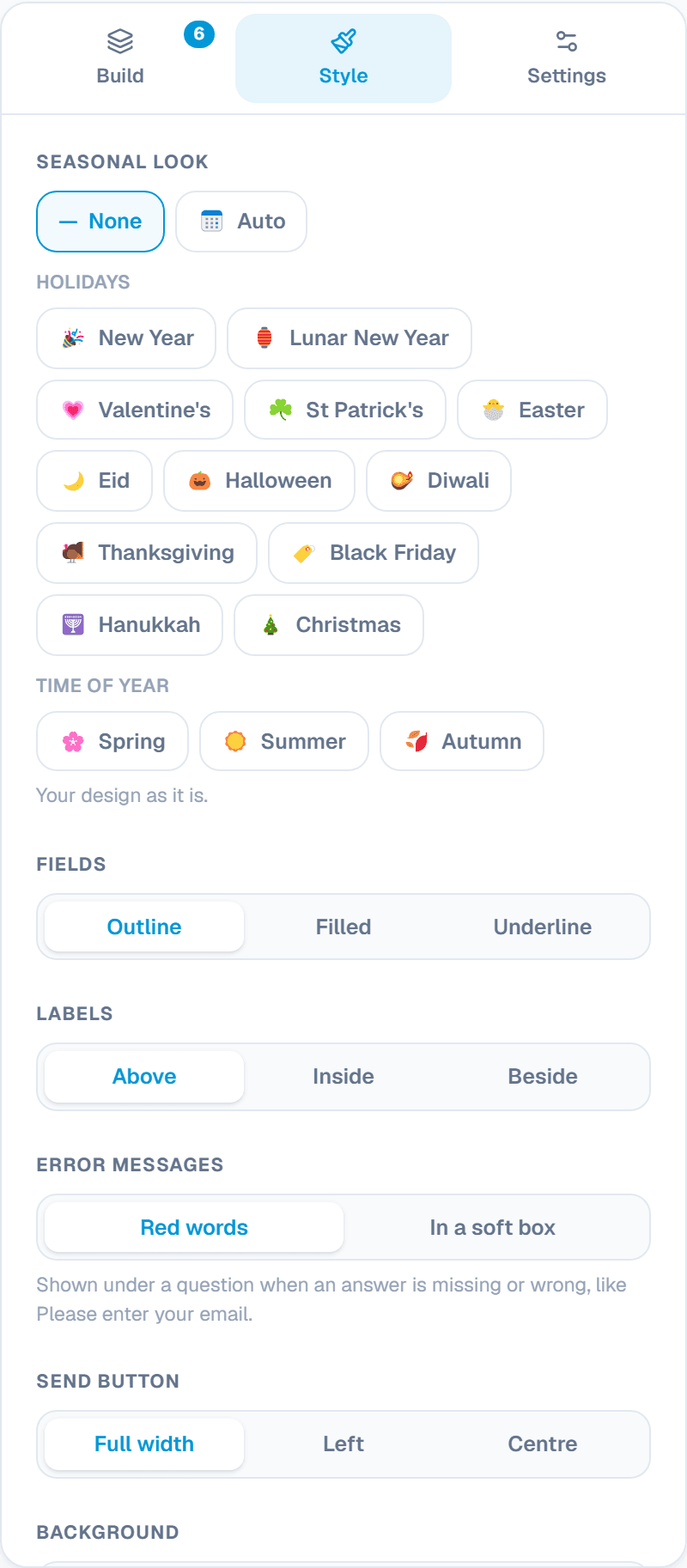
What it does: Box style, and labels above, beside or floating inside the box.
When to use it: Floating labels look modern and save space.
Error messages
What it does: Your own words under a question when an answer is missing or wrong.
When to use it: Friendly words, like Please enter your email so we can reply.
Send button
What it does: Its words, width (full or not) and alignment.
When to use it: A full-width button is easiest to press on a phone.
Colours, corners and font
What it does: Background, accent, fields, text and button colours, corners and your font.
When to use it: Match your site so the form feels trusted.
Seasonal look
What it does: Small holiday touches on the widget: New Year, Lunar New Year, Valentine's, St Patrick's, Easter, Eid, Halloween and more. Auto switches on its own around each holiday.
When to use it: A friendly touch for a few weeks a year, without making a new design.
3. Settings: after sending, emails and spam
After sending
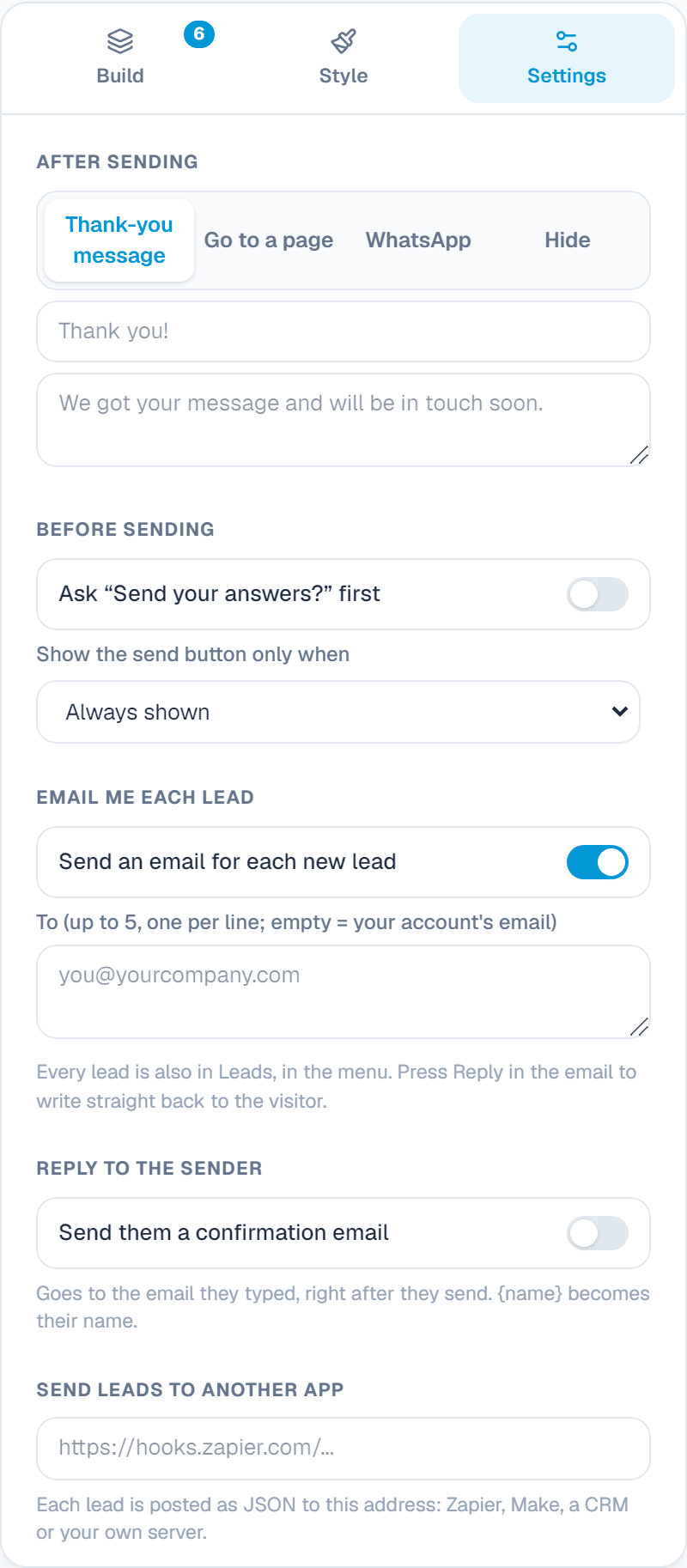
What it does: Show a thank-you message, go to another page, open a WhatsApp chat with the answers ready to send, or hide the form.
When to use it: Send people to a thank-you page to track sign-ups, or into WhatsApp to keep talking.
Email me each lead
What it does: Each lead is emailed to your account's address, or up to 5 addresses. Press Reply in the email to write straight back.
When to use it: Send quote requests to your sales person.
Reply to the senderPaid plans
What it does: A thank-you email to the visitor, right after they send, with their name in it. It can come from your own email address.
When to use it: Confirms you got the message and looks professional.
Send leads to another appPaid plans
What it does: Each lead is posted to an address you give: Zapier, Make, a CRM or your own server.
When to use it: Put every lead into your CRM or a Google Sheet by itself.
Rules for some answersPaid plans
What it does: When an answer matches, also email someone, send the visitor to a page, or post to an app. Up to 10 rules.
When to use it: When Service is Repairs, also email [email protected].
Spam protection
What it does: Always on: a hidden trap, a check that a person took time to fill it in, and a limit per visitor. Add a captcha (Cloudflare Turnstile, hCaptcha or Google reCAPTCHA), blocked words, no links, no throwaway emails, and the same answers only once a day.
When to use it: Turn on a captcha if spam still gets through.
Free plan
What it does: Up to 50 leads a month across your forms.
When to use it: Paid plans have no monthly limit.
Powered by WidgetPop
What it does: A small link under the widget. The Free plan always shows it; on a paid plan it is hidden unless you turn it on.
When to use it: Keep it hidden on a paid plan so the widget carries only your brand.
Custom CSSPaid plans
What it does: Your own CSS rules for this widget. Its classes start with .wpop, and the preview shows the result.
When to use it: For designers who need an exact font, size or spacing that the editor doesn't offer.
Add it to your website
In the Install tab, add your website's address under Allow your website, copy the code and paste it where the widget should appear. Every change you save shows on your site by itself.
About this widget
Related guides
- Stop spam on your formsWhat every form does already, and how to add a spam check.
- Your leadsEvery message from your forms, calculators and popups in one place.
- Emails for each new leadWho gets them, where a reply goes, and what to do if none arrive.
- Send form emails from your own addressMake the thank-you email come from [email protected] instead of WidgetPop (paid plans).
Still need help?
Tell us what you're trying to do. A real person replies, usually within one working day.