Instagram feed widget
Every feature of the Instagram feed widget, and when to use it.
Shows your public Instagram posts on your website. New posts come in by themselves. Below is every feature in the five tabs, what it does and when it helps.
Make one
- 1New widget, Instagram. Type your public Instagram username.
- 2Go through the tabs from left to right: Layout, Content, Colors, Style and Settings.
- 3Press Save, then add it to your website from the Install tab.
1. Layout: which posts, and how they sit
Templates
What it does: Ready-made designs at the top of the first tab. One click swaps the look and the example content; you then change the words.
When to use it: Start from a design that is close to what you want instead of an empty widget.
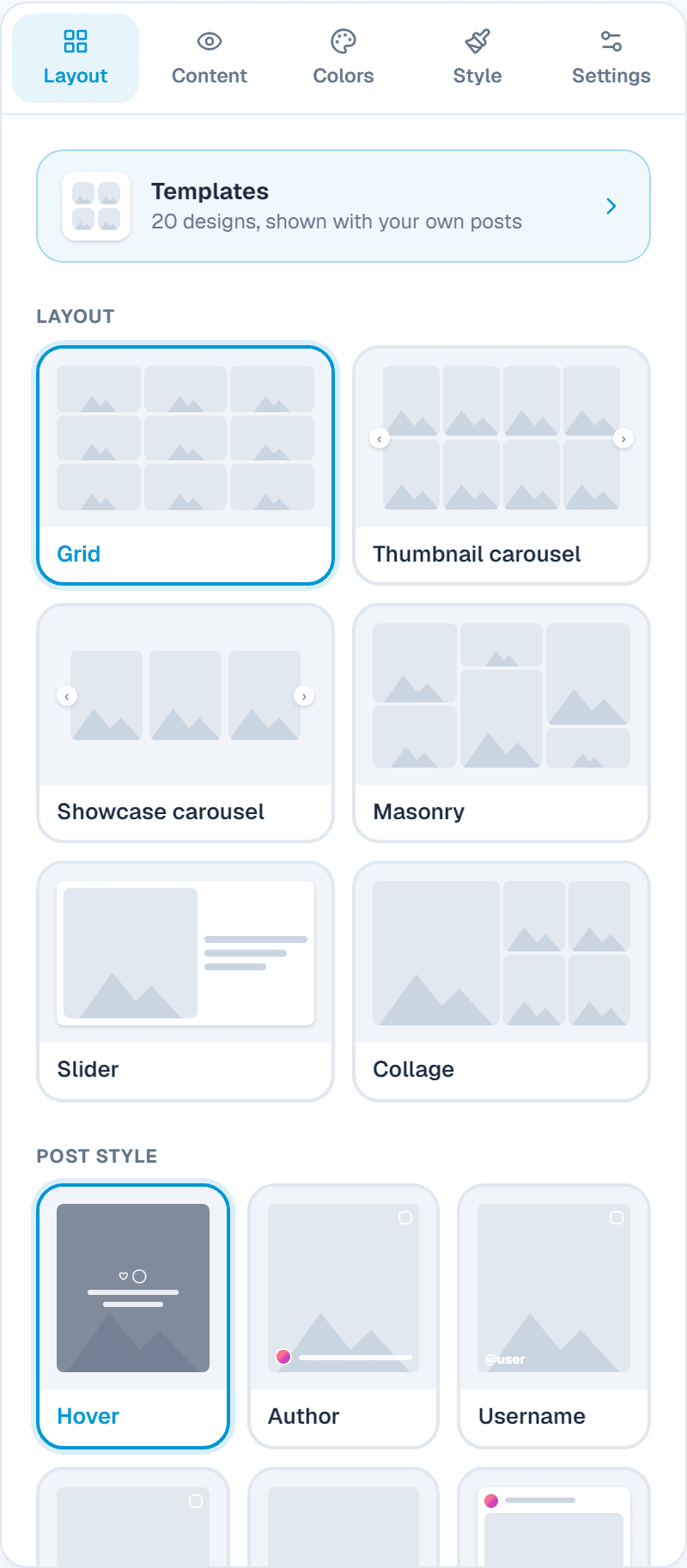
Layout
What it does: Grid (rows with Load more), Masonry, Thumbnail carousel (the grid in pages, turned with arrows), Showcase carousel (a row that slides), Slider (one post at a time with its caption) or Collage (the newest post large).
When to use it: Grid for a gallery section; a carousel when space is short; Collage to make your newest post stand out.
Post style
What it does: How each post looks: Hover (likes and caption appear on hover), Author, Username, Icon, Plain, Instagram (as the app shows it) or Caption (text under the photo).
When to use it: Plain or Hover for a clean look; Caption when the words matter, like recipes or products.
Posts to show and Load more
What it does: How many posts appear, a Load more button, and full or narrow width.
When to use it: Show one or two rows on a home page, with Load more for people who want more.
Autoplay
What it does: Carousels move on by themselves and wait while someone hovers or touches them.
When to use it: Keeps a carousel lively without anyone pressing arrows.
Background
What it does: Theme panel, Transparent (sits on your page) or a custom colour.
When to use it: Transparent blends in; a colour makes the feed a section of its own.
Post types
What it does: Photos, videos, albums and reels, each on or off.
When to use it: Turn reels off if you only want photos, or show only reels for a video feel.
FiltersPaid plans
What it does: Hide posts that mention some words or #hashtags, or show only posts that mention them.
When to use it: Show only #menu posts on your menu page, or hide giveaway posts.
Choose postsPaid plans
What it does: Hide any post, pin your best ones first, or add an older post by its link.
When to use it: Keep an old favourite on show, or take down a post about an offer that has ended.
How many posts
- Free: your latest 12.
- Paid plans: up to 50 on your site, out of a collection that keeps growing as you post, up to 500. Older posts are not lost when you post new ones.
- New posts show up every 2 days on paid plans and every few days on Free.
Choose posts (paid plans)
Under Choose posts you see every post in your collection. Press the eye to hide one, or the pin to put it first. To add an older post, paste its link into Add a post and save: it shows near the top.
2. Content: what each part shows
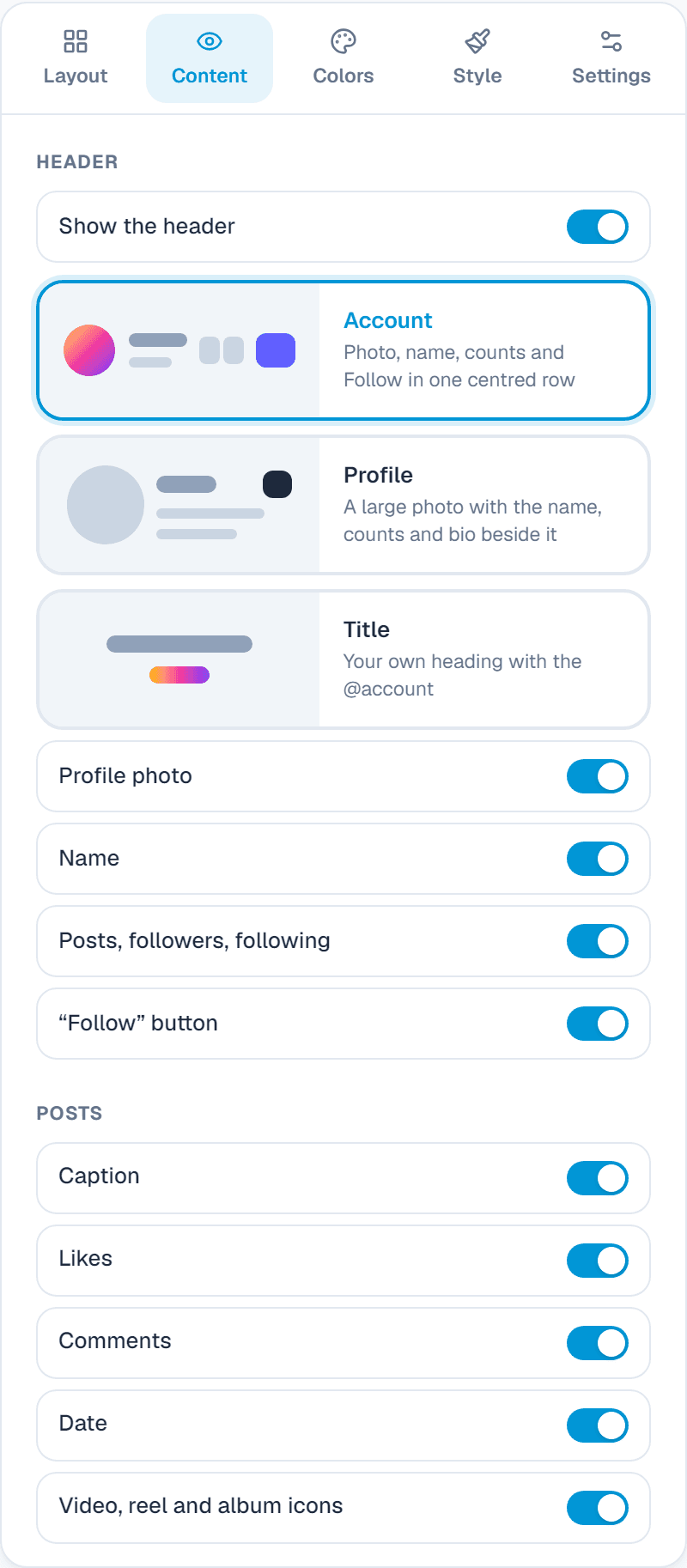
Header
What it does: Your profile photo, name, numbers (posts, followers, following), bio and a Follow button, with your own heading. Left or centred, or no header.
When to use it: Keep the Follow button: it turns visitors into followers.
Posts
What it does: Caption, likes, comments, date and the icons on videos, reels and albums, each on or off.
When to use it: Hide likes if your numbers are still small.
When a post is clicked
What it does: Open it big on your site, play it on the card, or go to Instagram.
When to use it: Open big here keeps visitors on your site.
Footer
What it does: A View on Instagram button, on the right or full width.
When to use it: Lets people jump to your full profile.
3. Colors and 4. Style
Colours
What it does: Background, text, buttons, arrows, pagination, the play button and the popup.
When to use it: Match your brand so the feed looks like part of your site.
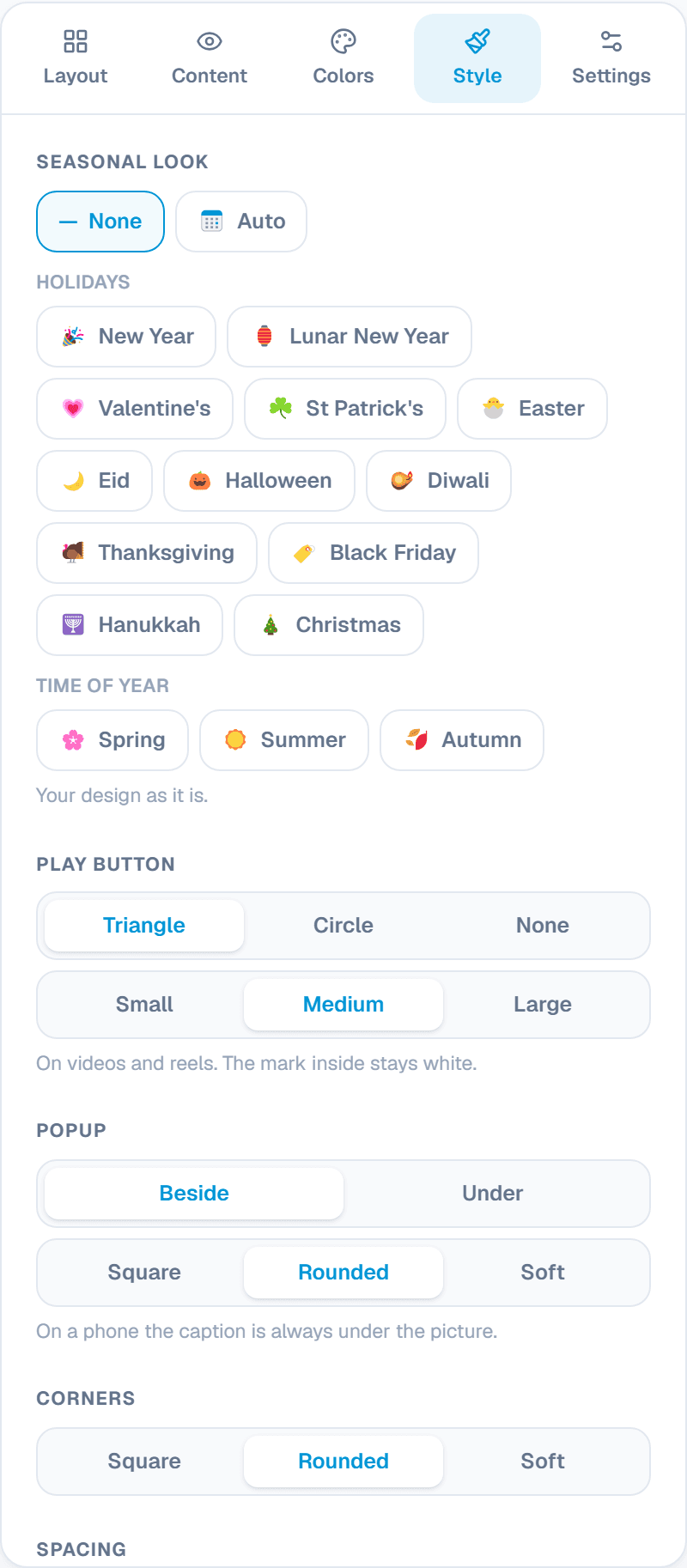
Play button
What it does: A triangle, a circle or none on videos and reels, small to large.
When to use it: Make videos easy to spot.
Popup
What it does: When a post opens big: the caption beside or under the picture.
When to use it: Beside on a computer reads like Instagram; phones always show it under.
Corners, spacing and post shape
What it does: Square to soft corners, the space between posts, and Instagram's 4:5 shape or each post's own shape.
When to use it: No space and a hairline give a tight, magazine look.
Animation and hover
What it does: Posts fade, slide up or zoom in as people scroll to them; a zoom or lift on mouse over.
When to use it: A soft fade makes the feed feel alive without distracting.
Caption length, arrows and pagination
What it does: Short, long or full captions; arrows; dots or numbers.
When to use it: Short captions keep the grid tidy; the popup shows them in full.
Seasonal look
What it does: Small holiday touches on the widget: New Year, Lunar New Year, Valentine's, St Patrick's, Easter, Eid, Halloween and more. Auto switches on its own around each holiday.
When to use it: A friendly touch for a few weeks a year, without making a new design.
Settings: the link and your own CSS
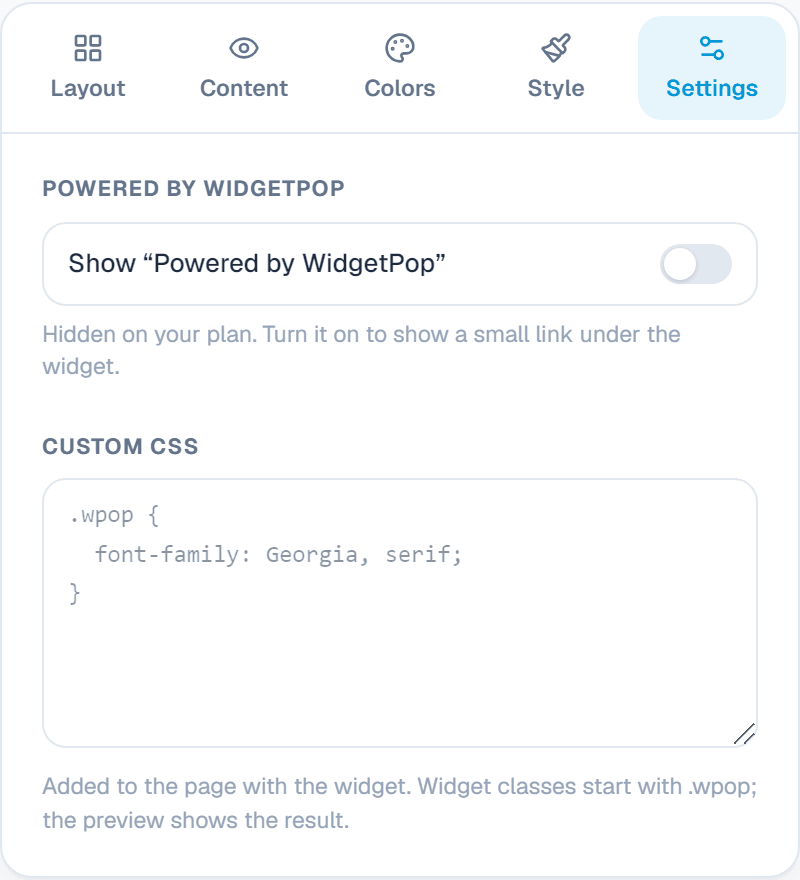
Powered by WidgetPop
What it does: A small link under the widget. The Free plan always shows it; on a paid plan it is hidden unless you turn it on.
When to use it: Keep it hidden on a paid plan so the widget carries only your brand.
Custom CSSPaid plans
What it does: Your own CSS rules for this widget. Its classes start with .wpop, and the preview shows the result.
When to use it: For designers who need an exact font, size or spacing that the editor doesn't offer.
Add it to your website
In the Install tab, add your website's address under Allow your website, copy the code and paste it where the widget should appear. Every change you save shows on your site by itself.
About this widget
Related guides
Still need help?
Tell us what you're trying to do. A real person replies, usually within one working day.