Popup widget
Every popup feature: what it does, and when to use it.
A popup is a box that opens over your page at the right moment: a discount, a sign-up, a notice or a small game. It takes no space on your page until it opens. Below is every feature, what it does and when it helps. Features marked Paid plans need a paid plan to save.
Make one
- 1New widget, Popup. Pick a ready popup (welcome discount, spin to win, exit offer, announcement bar and more) or start blank.
- 2Go through the five tabs from left to right: Content, Design, Triggers, Audience and Settings. The preview shows every change at once.
- 3Press Save, then add it to your website from the Install tab.
1. Content: what it says
Blocks
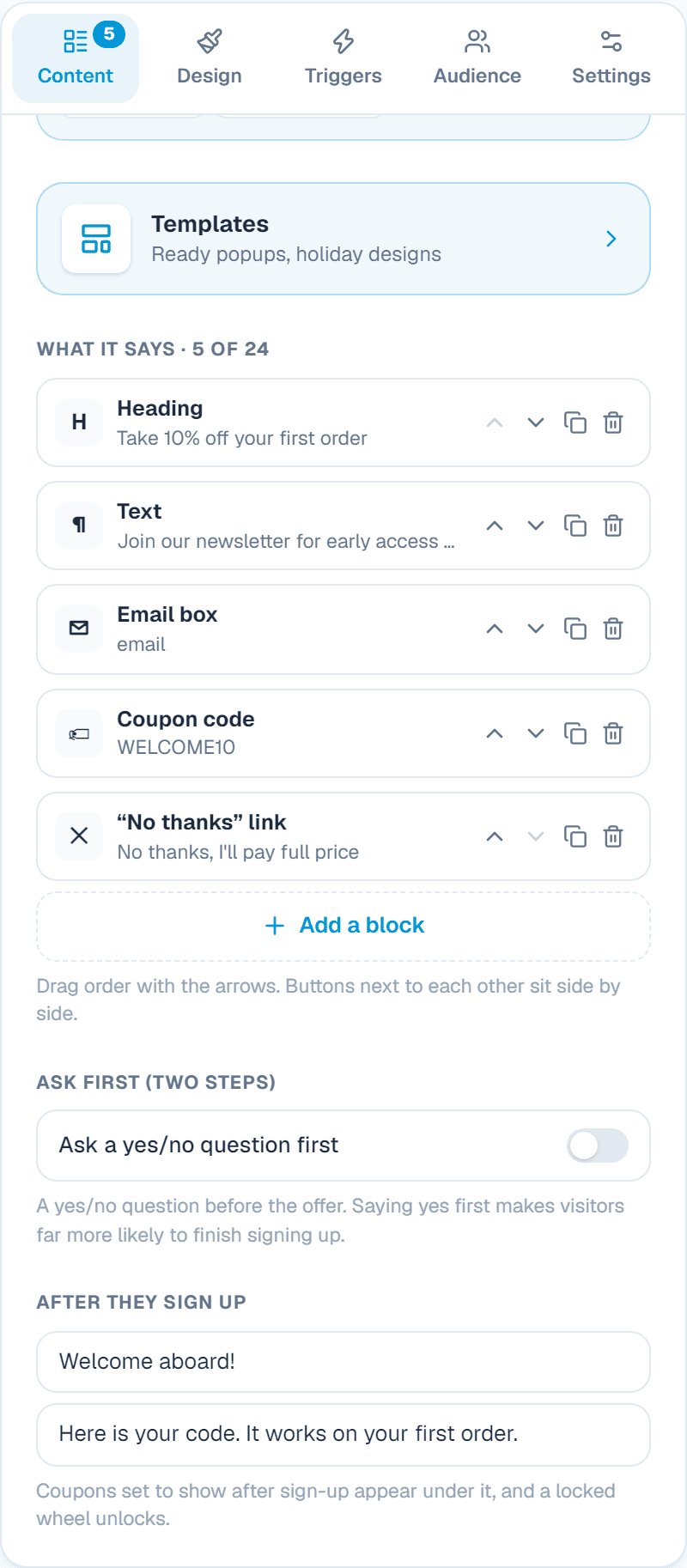
What it does: The popup is built from blocks, one under the other: heading, text, emoji, picture, buttons and more. Add a block, open it to change it, and move it with the arrows.
When to use it: Start from a ready popup and only change the words. Fewer blocks read faster: a heading, one line and one button is often enough.
Button
What it does: A button that opens a page, closes the popup, calls you or emails you. Two buttons next to each other sit side by side.
When to use it: Send people to your sale page, your booking page or your phone number. Add a second, quieter button like Maybe later.
WhatsApp and Add to calendar buttonsPaid plans
What it does: A button that opens a WhatsApp chat with your number and a ready message, or adds your event to the visitor's calendar.
When to use it: WhatsApp for shops and services that take orders by chat. Add to calendar for a webinar, sale day or opening.
Coupon code
What it does: A code the visitor copies with one tap. It can stay hidden until they sign up.
When to use it: Give a discount in exchange for an email: sign up and get WELCOME10. Visitors only see the code after signing up.
Countdown
What it does: A clock counting down to a date, or giving each visitor their own few minutes or hours.
When to use it: Make an offer feel urgent: Sale ends in 2 hours. The per-visitor clock suits offers that run all year.
Email box
What it does: An email box (with a name or phone if you like) whose sign-ups land in Leads. It can also show one of your own forms.
When to use it: Grow your mailing list or collect enquiries. You get an email for each sign-up, with the page it came from.
Social links
What it does: Round icons that link to your Instagram, Facebook, YouTube and other profiles.
When to use it: A thank-you popup or a notice that invites people to follow you.
“No thanks” link
What it does: A small link under the offer that closes the popup.
When to use it: People close a popup faster and happier when the way out is clear. Write something friendly, like No thanks, I'll pay full price.
VideoPaid plans
What it does: A YouTube or Vimeo video inside the popup. It loads only when pressed, so the page stays fast.
When to use it: A short welcome, a product demo or a message from the owner.
Spin-to-win wheelPaid plans
What it does: A prize wheel: the visitor leaves an email, spins, and wins one of your prizes with a code. You set the prizes and how likely each one is.
When to use it: Gets far more sign-ups than a plain email box, because it feels like a game. Good for shops and restaurants.
Scratch cardPaid plans
What it does: A card the visitor scratches with the mouse or a finger to reveal a discount.
When to use it: The same idea as the wheel, quicker to play. Good as a small corner popup.
Ask first (two steps)Paid plans
What it does: A yes/no question before the offer, like Want 15% off your first order? Only people who press Yes see the email box.
When to use it: People who have already said yes are much more likely to finish signing up, and people who say no are not bothered again.
After they sign up
What it does: The thank-you heading and line visitors see after signing up. Coupons set to show after sign-up appear here, and a locked wheel unlocks.
When to use it: Thank people and give them what you promised, straight away.
2. Design: how it looks
Type
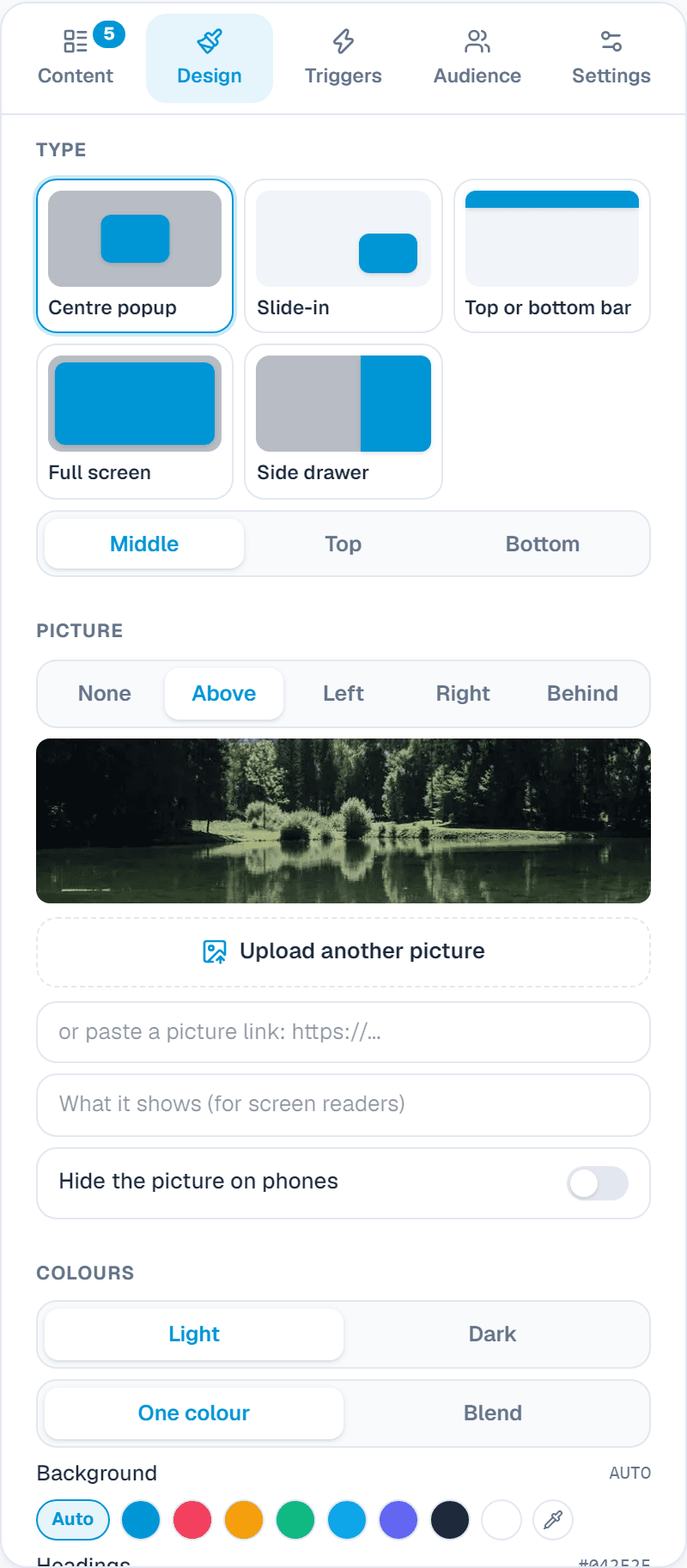
What it does: Where the popup appears: a box in the middle (or at the top or bottom), a slide-in from a corner, a bar across the top or bottom, or a drawer from the side.
When to use it: A box in the middle for an important offer. A corner slide-in or a bar for something quieter that doesn't interrupt reading.
Full screen
What it does: The popup covers the whole screen.
When to use it: A big launch, an age check or a one-time welcome. Use it rarely: it interrupts the most.
Picture
What it does: A picture above, to the left, to the right or behind the words. You can darken it and hide it on phones.
When to use it: A product photo or a friendly face makes people stop and read. Hide it on phones if the popup gets too tall.
Colours
What it does: Light, dark, one colour or a blend of two colours behind the words, plus colours for headings, text, buttons and the accent (codes, clock, wheel).
When to use it: Match your brand so the popup looks like part of your site.
Shape and words
What it does: Text centred or on the left, the font, the corners and the space inside.
When to use it: Rounded corners and a centred heading feel friendly; square corners and text on the left feel serious.
Motion
What it does: How the popup moves in: fade, zoom, slide or bounce. Visitors whose device asks for less motion see it appear without moving.
When to use it: A soft fade for most popups; a bounce for a sale.
Behind the popup
What it does: Darken or blur the page behind it, or leave it as it is. Choose whether a click outside closes it.
When to use it: Darken it when you want full attention. Leave the page clear for a small slide-in.
Close button
What it does: A round or plain ✕, or none, and how many seconds before it appears. Escape always closes the popup.
When to use it: Show the ✕ straight away: hiding it for long annoys people.
On phones
What it does: How it looks on a phone: on its own (Auto), a sheet from the bottom, a card, a bar or full screen.
When to use it: A sheet from the bottom is the easiest to reach with a thumb.
Floating buttonPaid plans
What it does: A small button in a corner or on the side of the screen (like 🎁 Special offer) that opens the popup at any time. It can appear only after the popup is closed.
When to use it: Lets people come back to an offer they closed. It also works alone, as a popup that only opens when asked.
3. Triggers: when it opens
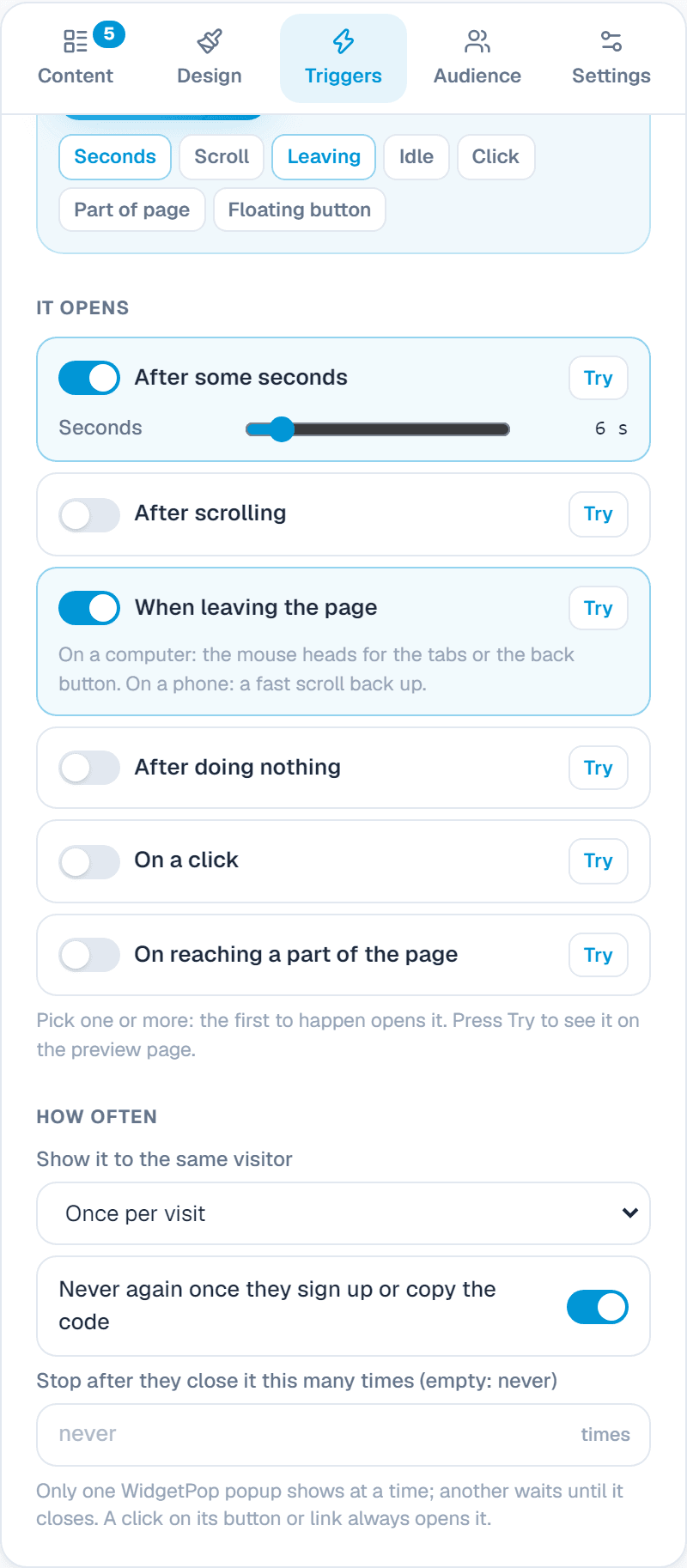
Turn on one or more triggers; whichever happens first opens the popup.
After some seconds
What it does: Opens a number of seconds after the page loads.
When to use it: The simplest trigger. 5 to 10 seconds lets people see your page first.
After scrolling
What it does: Opens when the visitor has scrolled part of the page, like half of it.
When to use it: Shows the offer to people who are reading, not to people who leave at once.
When leaving the page
What it does: On a computer, opens when the mouse heads for the tabs or the back button. On a phone, when someone scrolls back up fast.
When to use it: A last-chance offer for people about to leave: Wait, here's free shipping.
On a click
What it does: Opens when someone clicks a button or link on your page that you choose. Any link to #widgetpop opens it too, with no setting.
When to use it: Open a sign-up form from your own Get the guide button.
After doing nothingPaid plans
What it does: Opens when the visitor hasn't moved or scrolled for some seconds.
When to use it: Help someone who is stuck: Need help choosing?
On reaching a part of the pagePaid plans
What it does: Opens when a part of your page (like your prices or reviews) scrolls into view.
When to use it: Show a discount right when people look at your prices.
How often
What it does: Every page, once per visit, at most once a day, at most once a week, or only once ever.
When to use it: Once a day or once a week suits most offers. Every page only suits a bar or a notice.
Never again after signing up
What it does: Stops showing the popup to someone who signed up or copied the code.
When to use it: Don't ask people for something they already gave you.
Stop after closing
What it does: Stops showing it after someone has closed it a number of times.
When to use it: Respect people who clearly aren't interested.
Try
What it does: Each trigger has a Try button: the preview acts it out (counts the seconds, scrolls, pretends to leave).
When to use it: See exactly when and how it opens before you save.
4. Audience: who sees it
With no rules, everyone sees it on every page. Each rule narrows it down.
Pages
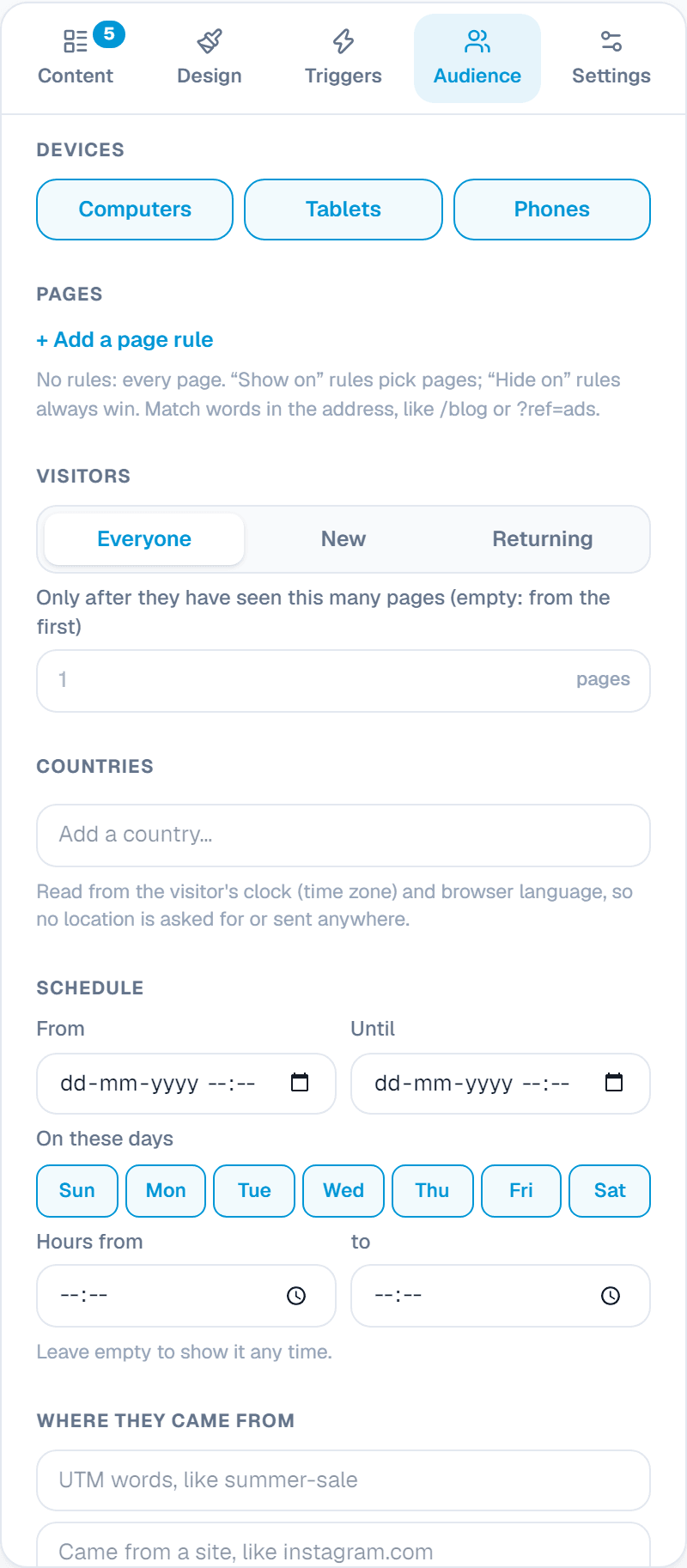
What it does: Show it on every page, or only on (or never on) pages whose address contains, is, starts or ends with some words.
When to use it: Show a discount on product pages but never on the checkout. Hide rules always win.
Devices
What it does: Computers, tablets and phones, each on or off.
When to use it: Turn phones off for a large popup that is awkward on a small screen.
VisitorsPaid plans
What it does: Everyone, only new visitors or only returning ones, and only after they have seen a number of pages.
When to use it: A welcome discount for new visitors; a thank-you offer for returning ones.
CountriesPaid plans
What it does: Show it only in, or everywhere but, some countries. Worked out from the visitor's time zone and browser language, so nothing is asked for or sent anywhere.
When to use it: An offer or a shipping notice for one country.
SchedulePaid plans
What it does: Dates from and until, days of the week and hours of the day.
When to use it: Start and stop a Black Friday popup on its own, or show Call us now only during opening hours.
Where they came fromPaid plans
What it does: Show it only to people who came from an ad, a newsletter or a site like Instagram (UTM words or the site they came from).
When to use it: A special welcome for people from your Instagram bio or your newsletter.
Sign-ups
What it does: Which of your forms the email box shows, and whether you get an email for each sign-up.
When to use it: Use a form you already built, with its own questions.
5. A/B test: which version works better?
Not sure which offer brings more sign-ups, 10% off or free shipping? Don't guess. An A/B test shows half of your visitors version A and the other half version B, then counts which one gets more sign-ups. Each visitor always sees the same version. (Paid plans.)
- 1Open the Audience tab and, under A/B test, turn on Test two versions.
- 2Press Edit version B. You are back in Content with version B open: change its heading, text or offer. Version A stays as it was. Both versions share the look, triggers and audience.
- 3Choose how many visitors get version A (half is best), then Save.
- 4Come back after a few days. The results show, for each version, how often it was shown, clicked and signed up to, and the sign-up rate. Once each version has been shown 30 times, the better one gets a Winning badge.
- 5Keep the winner: turn the test off and make its words your popup.
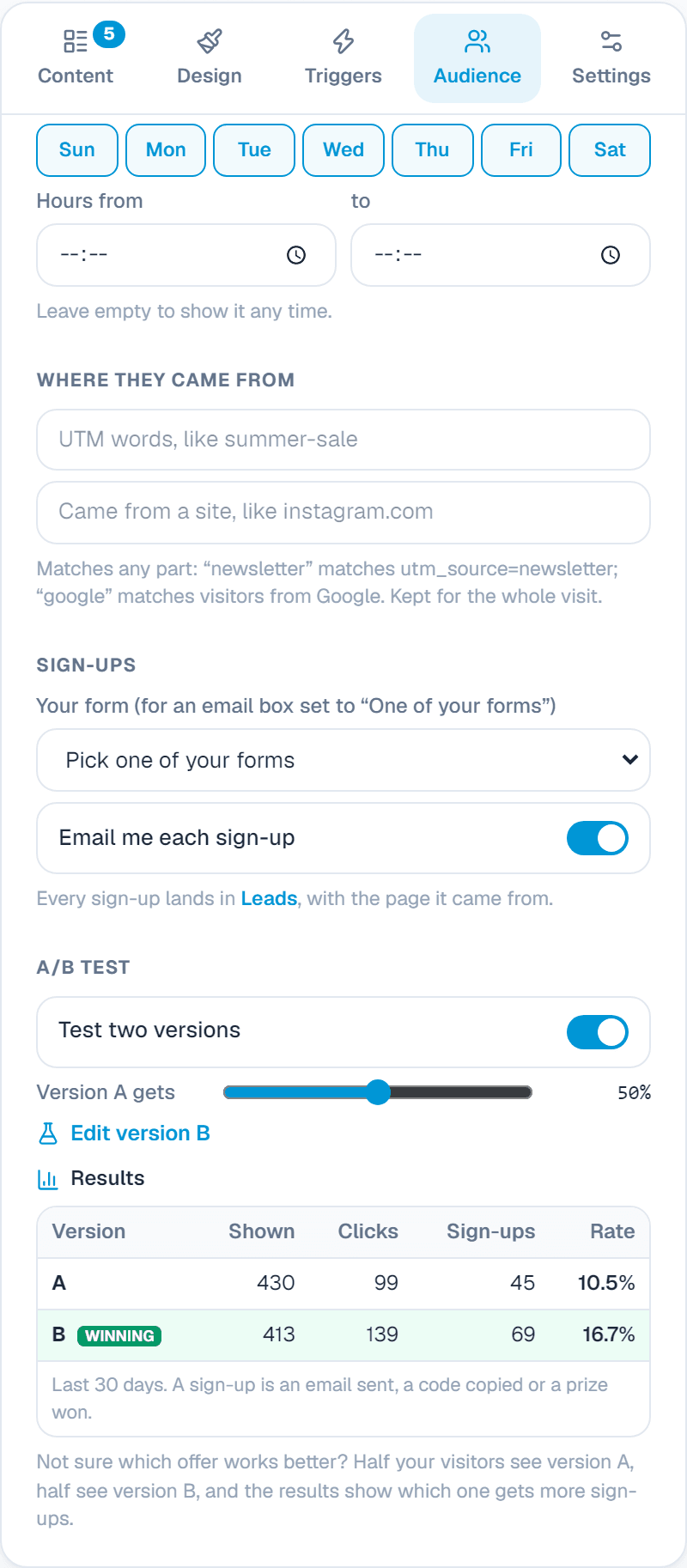
Change one thing at a time, only the heading or only the offer. Then you know what made the difference.
6. Settings
Powered by WidgetPop
What it does: A small link under the popup. The Free plan always shows it; on a paid plan it is hidden unless you turn it on.
When to use it: Keep it hidden on a paid plan so the popup carries only your brand.
Custom CSSPaid plans
What it does: Your own CSS rules for the popup. Its classes start with .wpop.
When to use it: For designers who need an exact font or spacing that the editor doesn't offer.
Add it to your website
In the Install tab, copy the one line of code and paste it into your site, anywhere on the page: a popup needs no space. Only one WidgetPop popup shows at a time; another waits until it closes.
About this widget
Related guides
Still need help?
Tell us what you're trying to do. A real person replies, usually within one working day.