Number counter widget
Every feature of the number counter, and when to use it.
Numbers that count up as visitors scroll to them: happy customers, projects, years in business, your Google rating. Below is every feature in the four tabs, what it does and when it helps.
1. Numbers
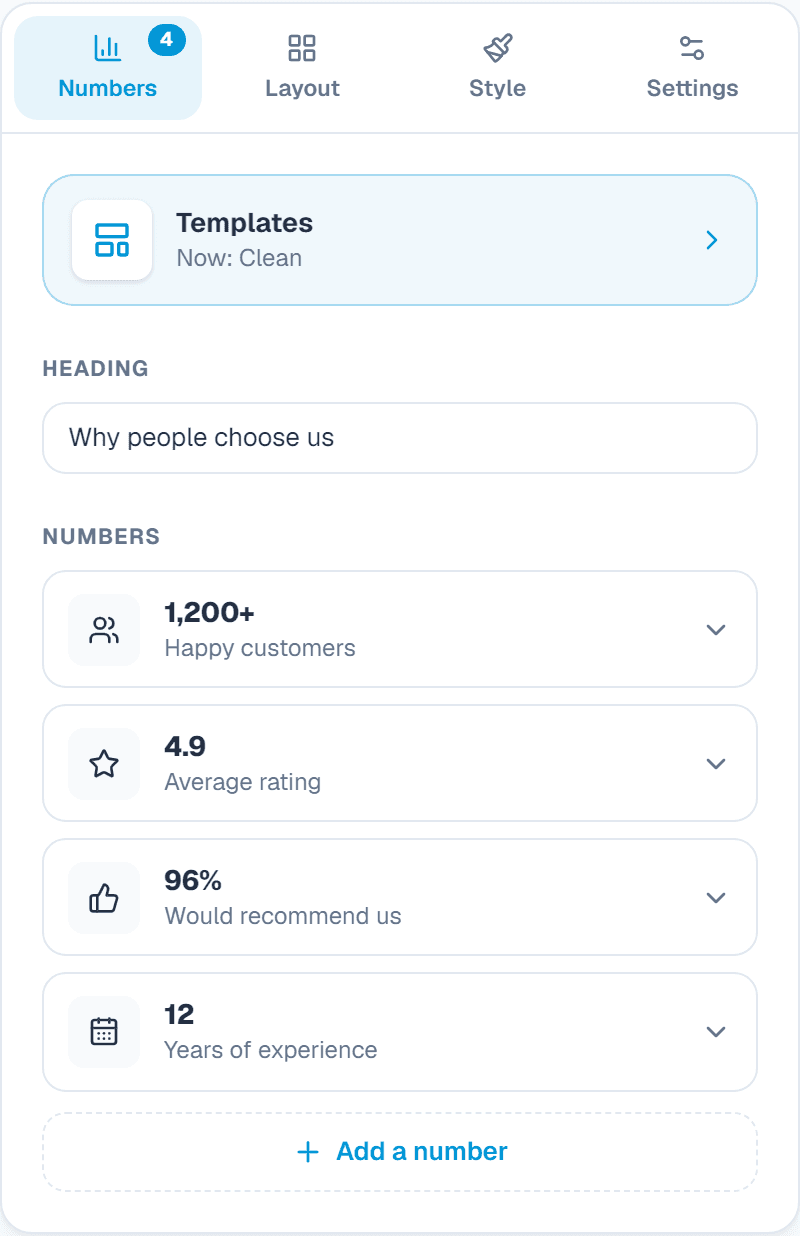
Templates
What it does: Ready-made designs at the top of the first tab. One click swaps the look and the example content; you then change the words.
When to use it: Start from a design that is close to what you want instead of an empty widget.
Heading
What it does: A line above the numbers, or no heading.
When to use it: Why people choose us, or Our year in numbers.
A number
What it does: Each number has a value, words before and after it (like $ or +), a title, and an icon from the list or your own.
When to use it: 1,200+ Happy customers reads better than a bare 1200.
Live Google numbers
What it does: Instead of typing a number, show your live Google rating or review count. It updates by itself.
When to use it: Your rating stays true without you touching it.
The big number
What it does: Make one number larger than the rest.
When to use it: Lead with your strongest number.
Link
What it does: Turn a number into a link.
When to use it: Link your review count to your reviews page.
Count up from, goal and small line
What it does: Where the count starts, a goal that draws a ring as it fills, and a small line under it like +18% this year.
When to use it: A goal ring shows progress, like 87 of 100 trees planted.
Own colour, move, duplicate
What it does: Give one number its own colour, change the order or copy a number.
When to use it: Highlight one number in your brand colour.
2. Layout
Design
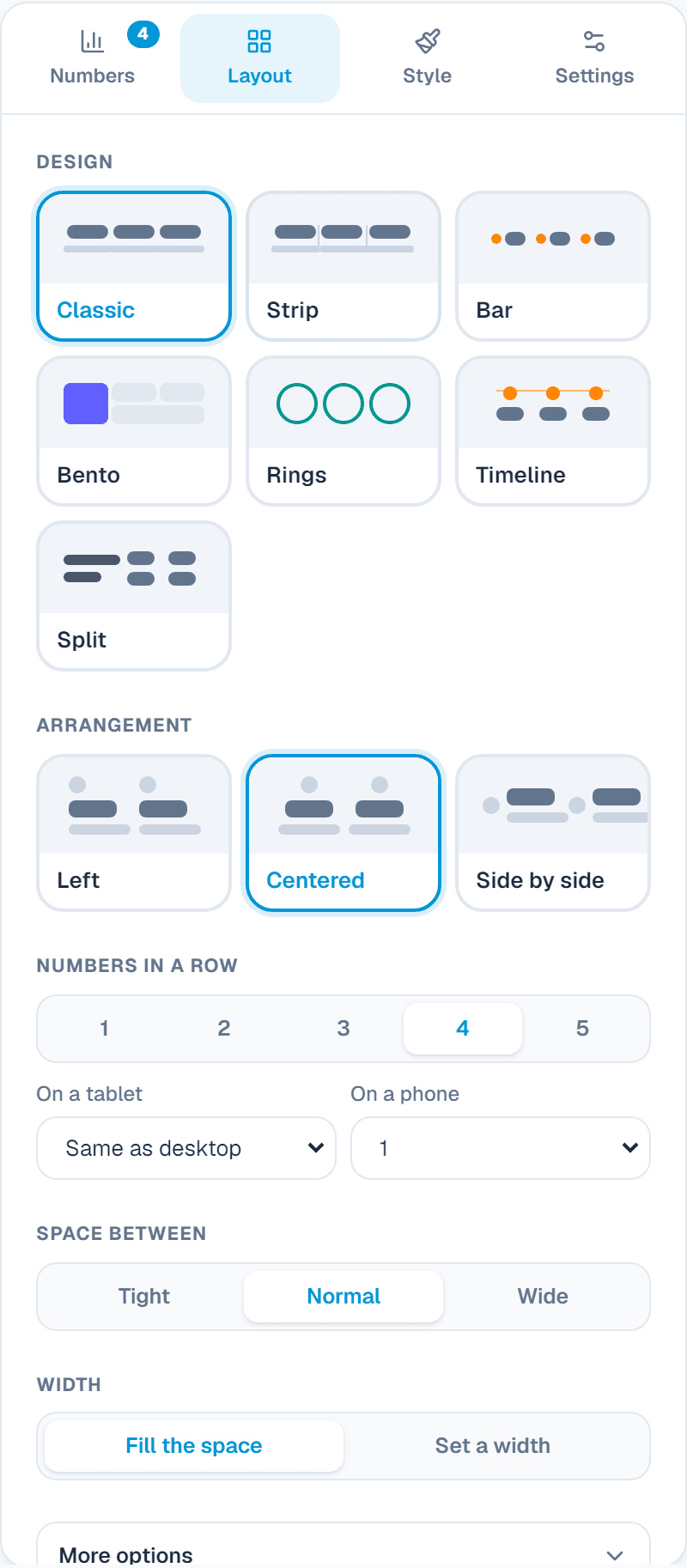
What it does: Classic (a grid), Strip (one row with thin lines), Bar (one slim line), Bento (the first number on a big tile), Rings, Timeline (along a line) or Split (heading beside the numbers).
When to use it: Strip or Bar under a hero banner; Bento for a bold section; Rings with goals.
Numbers in a row
What it does: How many in a row on a computer, a tablet and a phone.
When to use it: Two in a row on phones keeps numbers big.
Space and box
What it does: Tight to wide space, or an exact size; corners and inner space of the box.
When to use it: More space feels premium; tight fits a small strip.
3. Style
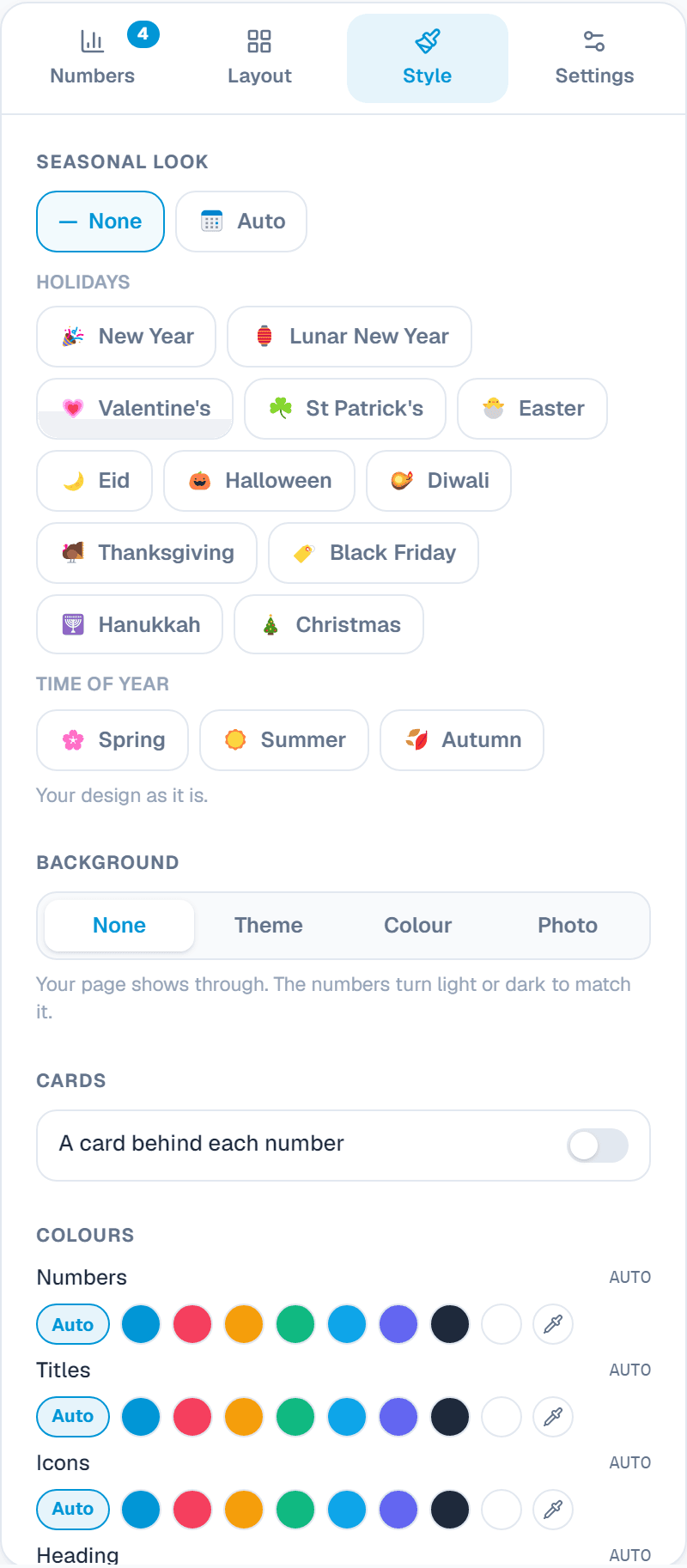
Background
What it does: None, the theme, a colour or a photo (darkened so the numbers stand out), with light or dark text.
When to use it: A photo of your team or work behind the numbers tells a story.
Card
What it does: A card behind each number.
When to use it: Separates numbers on a busy background.
Colours
What it does: Numbers, titles, icons, heading, and a circle behind each icon.
When to use it: Use your brand colour for the numbers.
Sizes and font
What it does: Small to extra large, your site's font, serif or mono; exact sizes per device, bold or regular, left or centred.
When to use it: A long number shrinks by itself so it never runs into the next one.
Seasonal look
What it does: Small holiday touches on the widget: New Year, Lunar New Year, Valentine's, St Patrick's, Easter, Eid, Halloween and more. Auto switches on its own around each holiday.
When to use it: A friendly touch for a few weeks a year, without making a new design.
Settings: the link and your own CSS
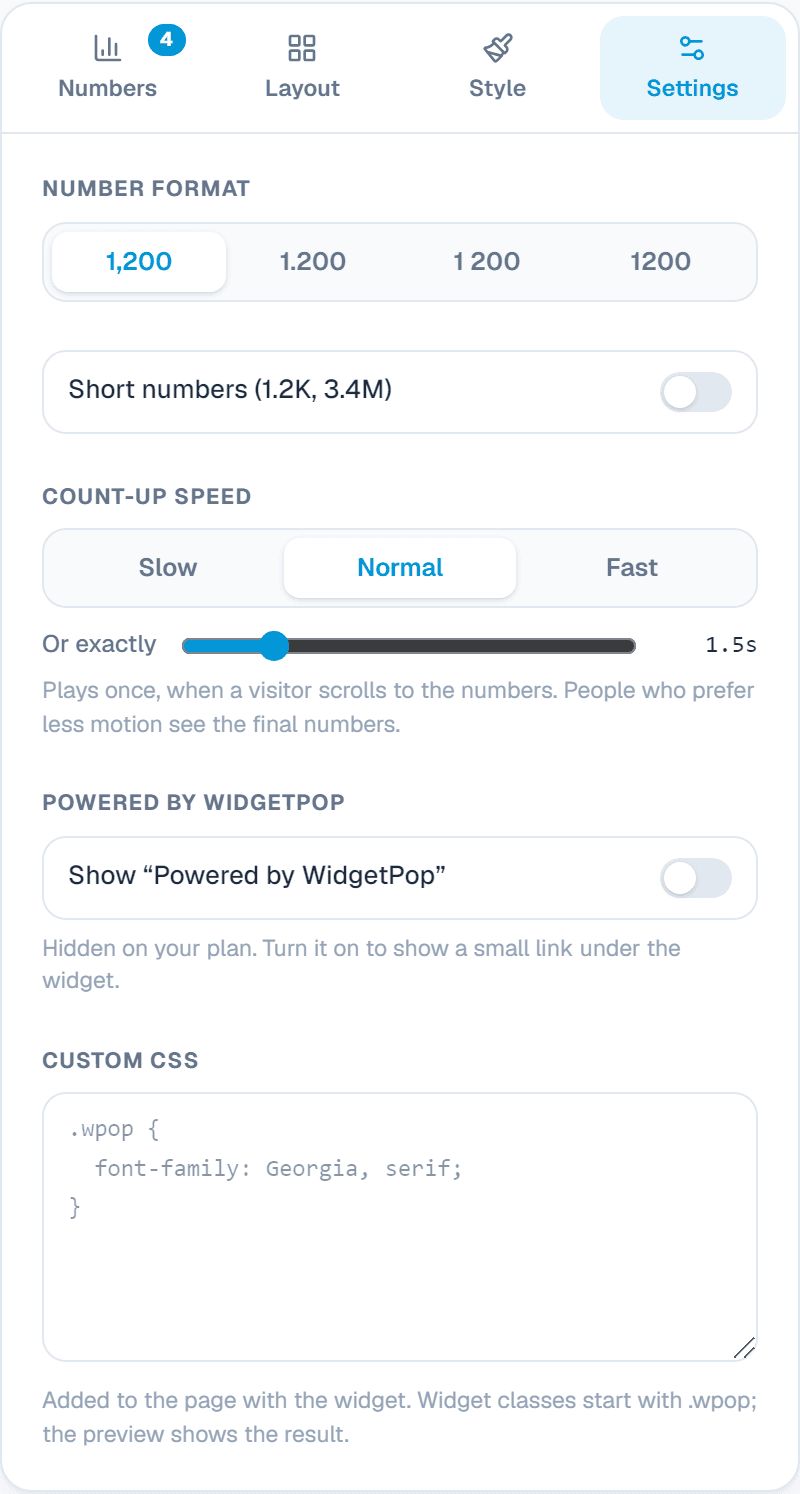
Number format
What it does: 1,200 or 1.200 or 1 200, and short numbers like 1.2K and 3.4M.
When to use it: Match how numbers are written in your country.
Count-up speed
What it does: Slow, normal, fast or an exact number of seconds. It plays once, when the numbers scroll into view.
When to use it: Normal suits most; slow feels dramatic for one big number.
Powered by WidgetPop
What it does: A small link under the widget. The Free plan always shows it; on a paid plan it is hidden unless you turn it on.
When to use it: Keep it hidden on a paid plan so the widget carries only your brand.
Custom CSSPaid plans
What it does: Your own CSS rules for this widget. Its classes start with .wpop, and the preview shows the result.
When to use it: For designers who need an exact font, size or spacing that the editor doesn't offer.
Add it to your website
In the Install tab, add your website's address under Allow your website, copy the code and paste it where the widget should appear. Every change you save shows on your site by itself.
About this widget
Related guides
Still need help?
Tell us what you're trying to do. A real person replies, usually within one working day.