Timeline widget
Every feature of the timeline, and when to use it.
Your story one step at a time: company history, a product roadmap, an event agenda, a travel plan or a wedding story. Below is every feature in the four tabs, what it does and when it helps.
Make one
- 1New widget, Timeline. Pick a ready timeline (company history, roadmap, event agenda, wedding story and more) or start blank.
- 2In Stories, add your steps. In Layout and Style, the look. In Settings, roadmap mode, motion and extras.
- 3Press Save, then add it to your website from the Install tab.
1. Stories
Templates
What it does: Ready-made designs at the top of the first tab. One click swaps the look and the example content; you then change the words.
When to use it: Start from a design that is close to what you want instead of an empty widget.
Words
What it does: The timeline's heading and the line under it.
When to use it: Our story, or Norway in 6 days.
A story
What it does: A label (like Step 1) or a real date or date range, a title, a few words, tags and a button. Drag stories into order.
When to use it: Short titles and one or two lines each: people scan timelines.
Picture, icon or marker
What it does: A photo, an icon from the list, or a number on the line.
When to use it: Photos make history and travel timelines come alive.
Featured
What it does: Makes one story a big highlighted card.
When to use it: Your biggest milestone.
Import
What it does: Paste rows from Google Sheets or Excel to add many stories at once.
When to use it: Bring in a long agenda in seconds.
Gallery, video, form buttonPaid plans
What it does: Several pictures per story, a YouTube or Vimeo video, and a button that opens one of your forms.
When to use it: A video for your launch story; Book a seat on an event agenda.
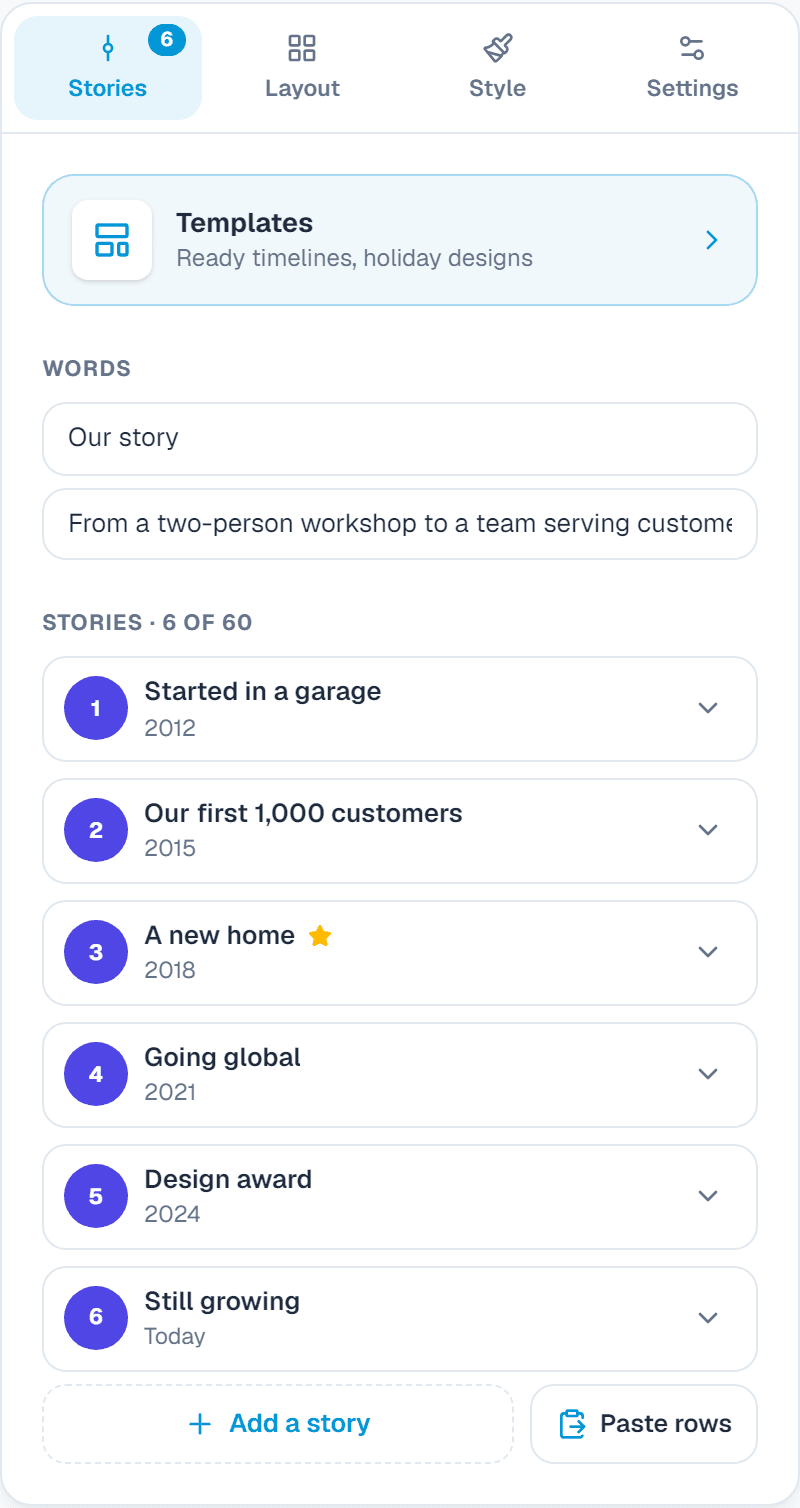
Stories follow the order in the editor, not their dates. Drag them to reorder, or sort by date in Layout.
2. Layout
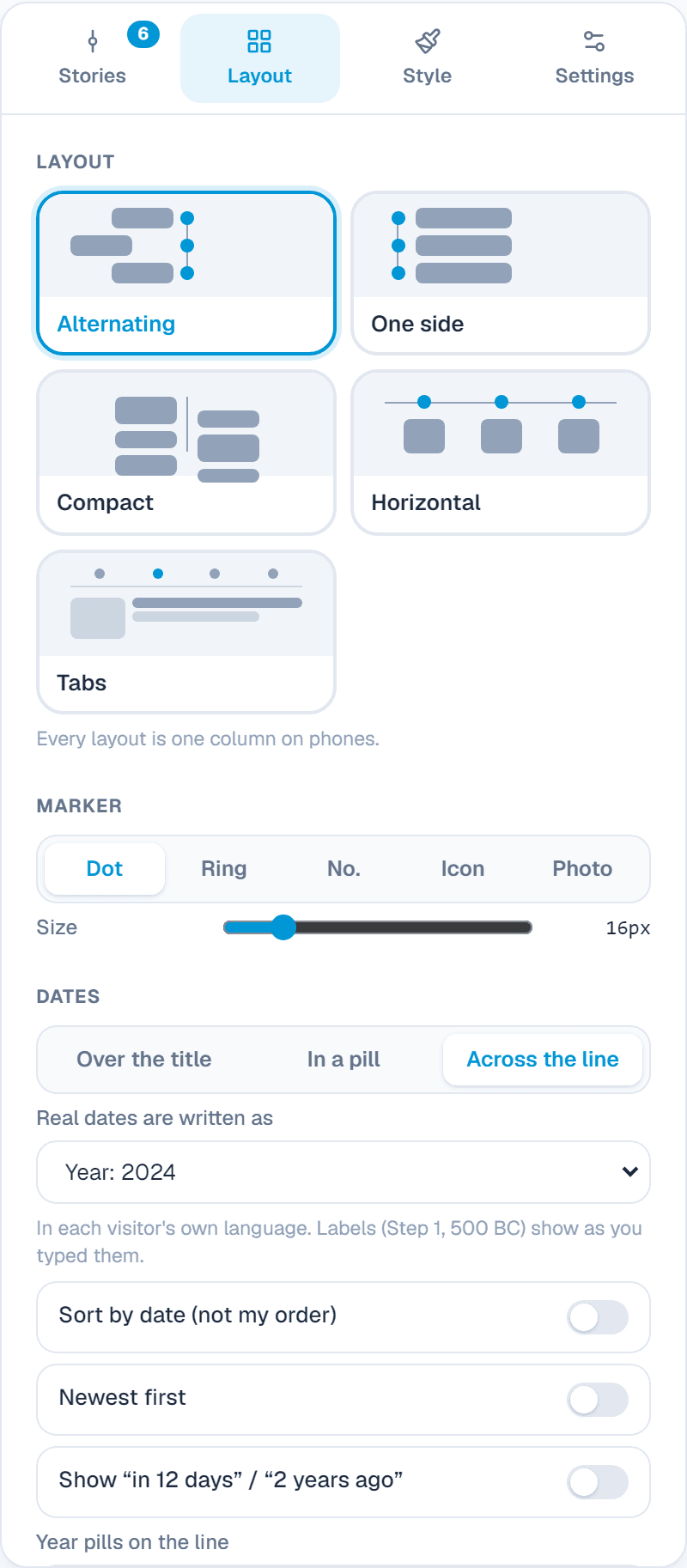
Layout
What it does: Alternating (down the middle), One side, Compact (two tight columns), Horizontal (sideways with arrows and swipe) or Tabs. Every layout is one column on phones.
When to use it: Alternating for history; Horizontal for a travel plan; One side for a long agenda.
Marker and dates
What it does: A dot, ring, number, icon or photo on the line; dates as a year, a month, a full date or short, and 2 years ago style.
When to use it: Years for company history; full dates for an event.
Text, pictures and size
What it does: How much text shows before Show more, picture shape, card width and space between stories.
When to use it: Short text with Show more keeps a long timeline tidy.
3. Style
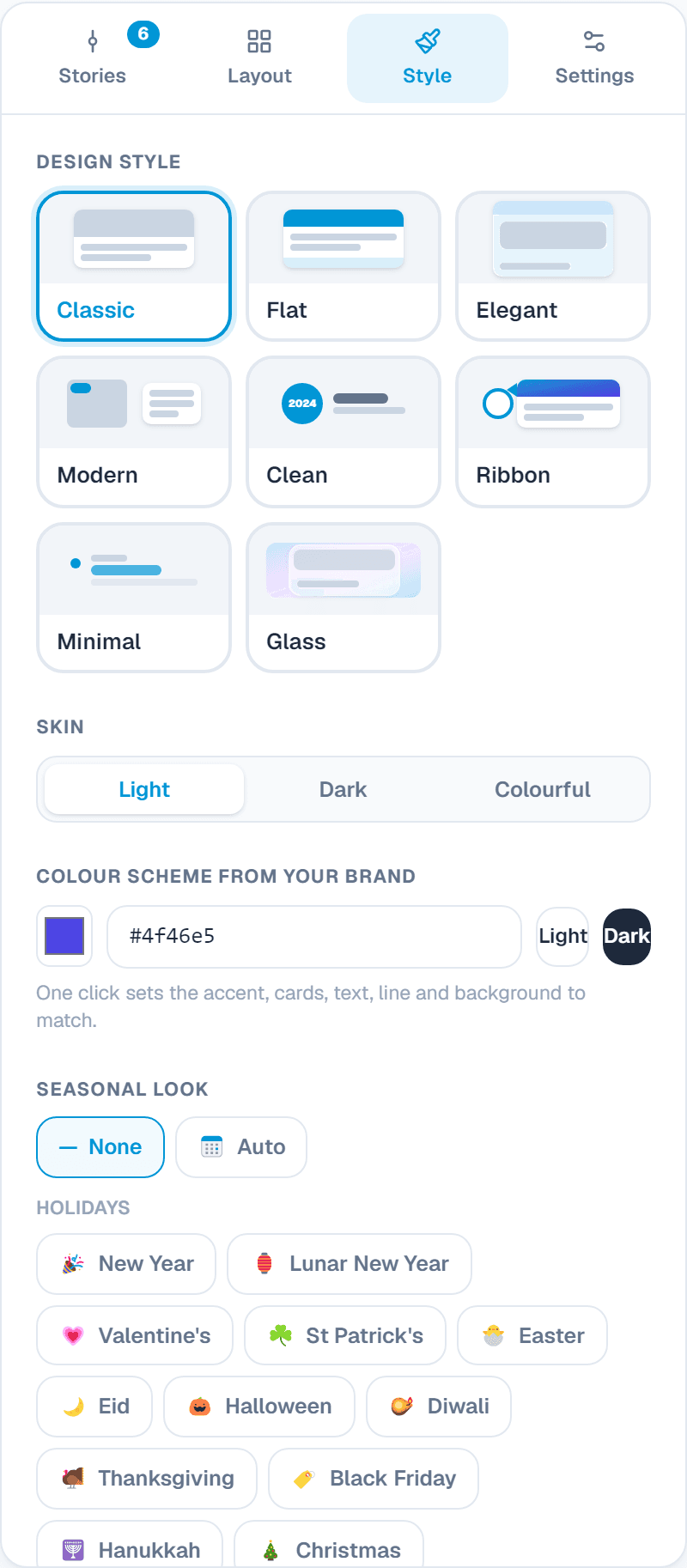
Design style
What it does: Classic (year pills), Clean (big date circles), Flat, Elegant, Modern and more.
When to use it: Clean for a calm page; Modern for photos.
Skin
What it does: Light, dark, or Colourful (each story its own colour).
When to use it: Colourful suits a fun brand story.
Colour scheme from your brand
What it does: One click sets the accent, cards, text, line and background to match your brand colour.
When to use it: The fastest way to make it look like your site.
Cards, line, colours and font
What it does: Card look, a solid, dashed or dotted line, each colour, and the font.
When to use it: A dashed line for future plans.
Seasonal look
What it does: Small holiday touches on the widget: New Year, Lunar New Year, Valentine's, St Patrick's, Easter, Eid, Halloween and more. Auto switches on its own around each holiday.
When to use it: A friendly touch for a few weeks a year, without making a new design.
4. Settings
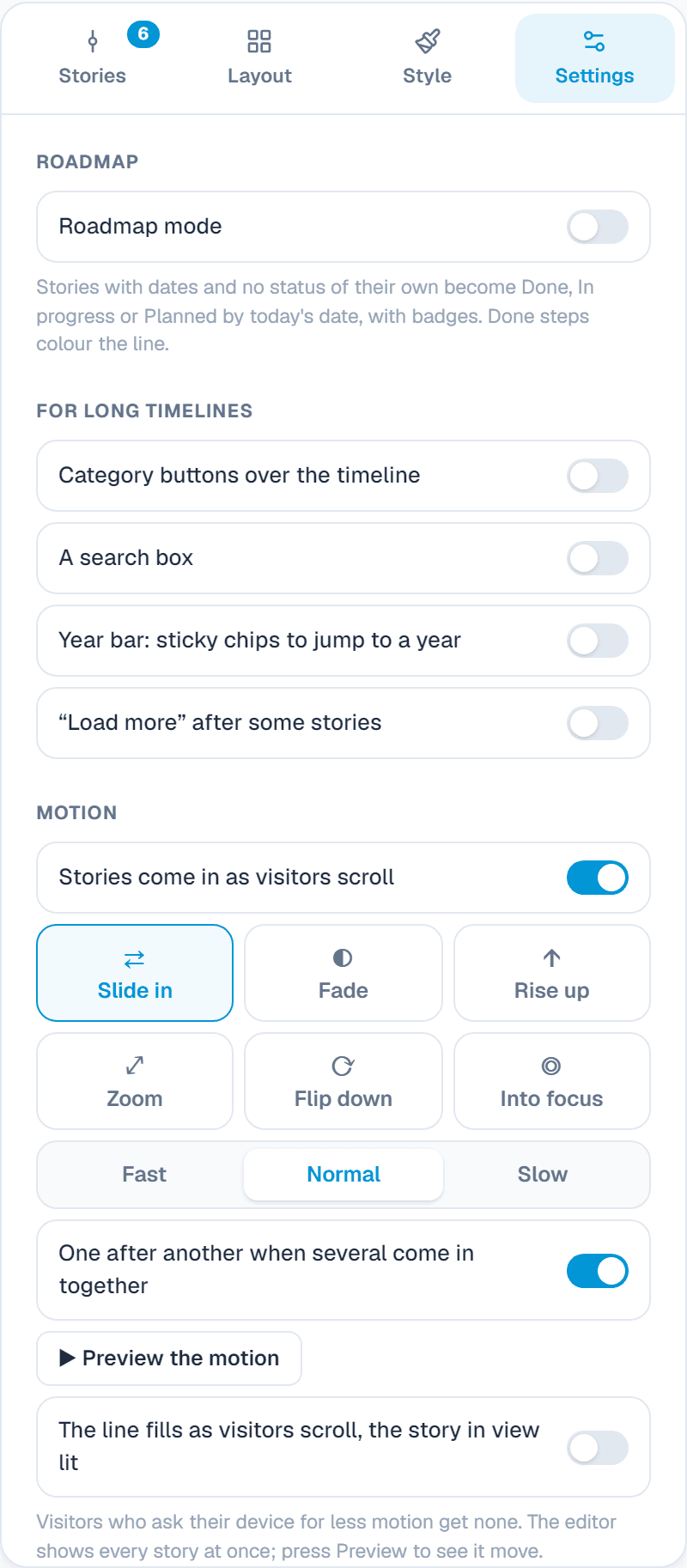
RoadmapPaid plans
What it does: Stories with dates become Done, In progress or Planned by today's date, with badges, and the line fills up to today. Add a progress bar.
When to use it: A product roadmap that updates itself as time passes.
For long timelinesPaid plans
What it does: Category buttons, a search box, a sticky year bar to jump to a year, and Load more.
When to use it: Help visitors find one year or one kind of story fast.
Motion
What it does: How stories move in as people scroll: slide, fade, rise, zoom, flip or focus; fast or slow; one after another or together. A line that fills as visitors scroll is on paid plans.
When to use it: A gentle slide for most timelines. People who ask for less motion see none.
Visitors can
What it does: Copy a link to one story (it opens and lights up), and add future stories to their calendar (paid plans).
When to use it: Share a single milestone; let people save event dates.
Form popupPaid plans
What it does: Story buttons set to Opens a form show one of your forms in a popup; answers land in Leads with the story's title.
When to use it: Book a place on an agenda item.
Links and search engines
What it does: Open links in the same tab, and tell search engines about the stories.
When to use it: Helps Google understand your events and history.
Powered by WidgetPop
What it does: A small link under the widget. The Free plan always shows it; on a paid plan it is hidden unless you turn it on.
When to use it: Keep it hidden on a paid plan so the widget carries only your brand.
Custom CSSPaid plans
What it does: Your own CSS rules for this widget. Its classes start with .wpop, and the preview shows the result.
When to use it: For designers who need an exact font, size or spacing that the editor doesn't offer.
Add it to your website
In the Install tab, add your website's address under Allow your website, copy the code and paste it where the widget should appear. Every change you save shows on your site by itself.
About this widget
Related guides
Still need help?
Tell us what you're trying to do. A real person replies, usually within one working day.