Calculator widget
Every feature of the calculator, and when to use it.
A calculator on your site: a price quote, a loan or mortgage payment, savings, a dental cost, a BMI. Visitors move sliders or pick options and see the answer at once, and you can ask for their details. Below is every feature in the three tabs, what it does and when it helps.
Make one
- 1New widget, Calculator. Pick a ready calculator (mortgage, cleaning quote, veneers, solar savings and many more) or start blank.
- 2In Build, change the fields and results. In Style, the look. In Settings, leads and buttons.
- 3Press Save, then add it to your website from the Install tab.
1. Build: fields, results and formulas
Templates
What it does: Ready-made designs at the top of the first tab. One click swaps the look and the example content; you then change the words.
When to use it: Start from a design that is close to what you want instead of an empty widget.
Words
What it does: The heading and the line under it, and the results heading.
When to use it: Say what the visitor gets: See what your new home costs each month.
Number and slider
What it does: A number visitors type, or one picked by dragging between a lowest and a highest, with a prefix or suffix like $ or %.
When to use it: Sliders are fun and quick; a number box is better for exact amounts.
Dropdown, choice and switch
What it does: One option from a list, buttons or picture cards (one or several), or a yes/no switch. Each option has a value.
When to use it: Picture cards for a service menu: Standard clean, Deep clean, Move out.
Date and heading
What it does: A date, and a heading to split long calculators into parts.
When to use it: Dates for bookings; headings to group questions.
Result and formula
What it does: A result works out a number from the fields with a formula, like price * (1 - down / 100). It can use IF, ROUND, MIN, MAX, SUM, PMT and more, and other results. Shown as a number, money or a percent.
When to use it: One main result in big type, with smaller results under it, like total interest.
More fields and resultsPaid plans
What it does: Free holds 6 fields and 2 results; paid plans up to 40 fields and 15 results.
When to use it: Detailed quotes with many options.
Show only for some answersPaid plans
What it does: A field or result appears only when another answer matches.
When to use it: Ask How many floors? only when the visitor picks House.
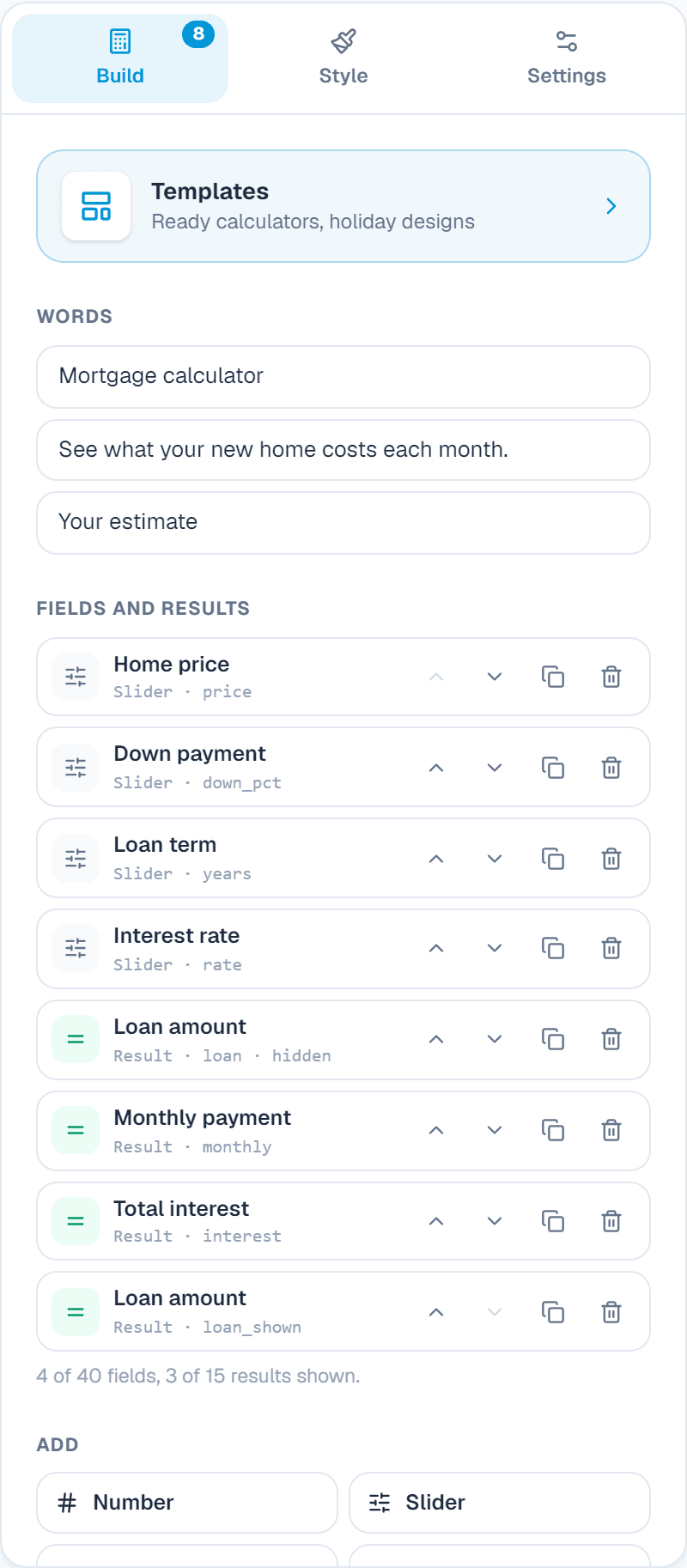
Each field has a short name used in formulas. Keep names simple, like price or rooms.
2. Style
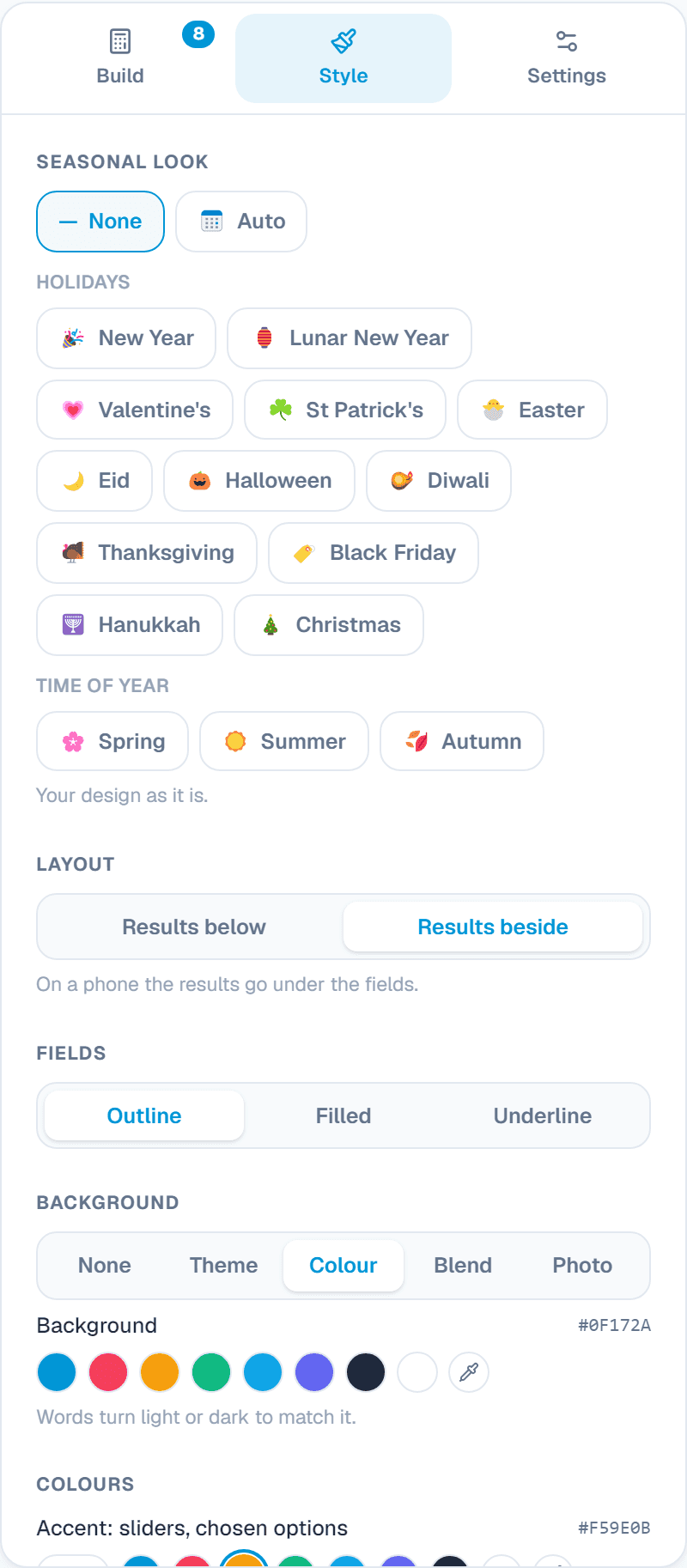
Layout
What it does: Results beside the fields, or below them. On a phone the results always go under.
When to use it: Beside on a wide page, so the answer changes in view as people move sliders.
Fields
What it does: Outline, filled or underline boxes.
When to use it: Match the forms on your site.
Colours, corners and font
What it does: Background (none, theme, colour, blend or photo), accent, results panel, button colours, corners and your font.
When to use it: A bold results panel draws the eye to the answer.
Seasonal look
What it does: Small holiday touches on the widget: New Year, Lunar New Year, Valentine's, St Patrick's, Easter, Eid, Halloween and more. Auto switches on its own around each holiday.
When to use it: A friendly touch for a few weeks a year, without making a new design.
3. Settings: leads, buttons and money
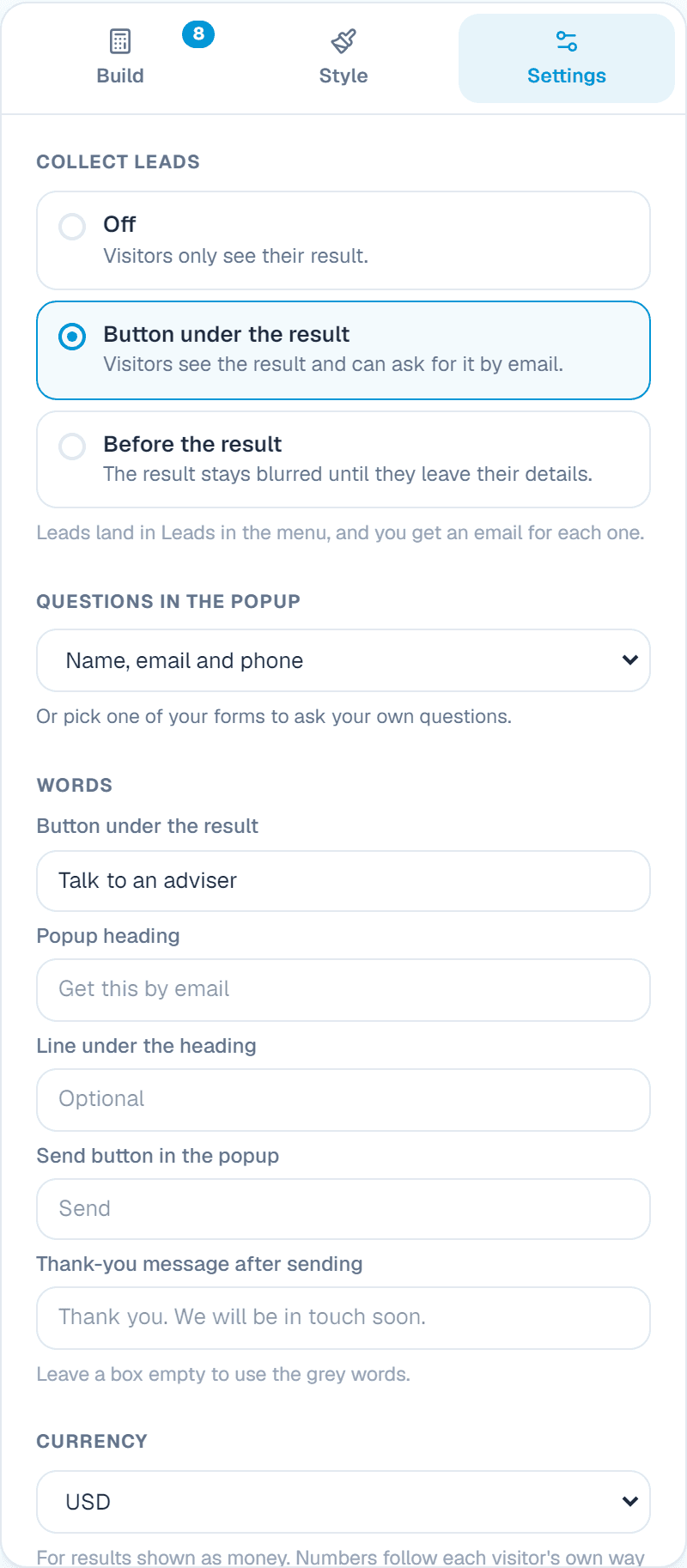
Collect leads: off
What it does: Visitors only see their result.
When to use it: A simple tool that just helps.
Button under the result
What it does: Visitors see the result and can ask for it by email. What they send lands in Leads, and you get an email.
When to use it: Ready to buy? Talk to an adviser: a warm lead who already knows the price.
Before the resultPaid plans
What it does: The result stays blurred until visitors leave their details.
When to use it: Gets the most leads, from people who really want the answer.
Questions in the popup
What it does: Which details to ask: name, email, phone and more.
When to use it: Ask only what you need: fewer questions, more leads.
Currency
What it does: The currency for money results. Numbers follow each visitor's own way of writing them.
When to use it: Show prices in the currency you sell in.
Call to action and link button
What it does: A heading and a line above the buttons under the results, and a button to a page, an email or a phone number.
When to use it: Book a free survey, under a solar savings result.
Start over
What it does: A Reset link that puts every field back.
When to use it: Lets people try another set of answers quickly.
Powered by WidgetPop
What it does: A small link under the widget. The Free plan always shows it; on a paid plan it is hidden unless you turn it on.
When to use it: Keep it hidden on a paid plan so the widget carries only your brand.
Custom CSSPaid plans
What it does: Your own CSS rules for this widget. Its classes start with .wpop, and the preview shows the result.
When to use it: For designers who need an exact font, size or spacing that the editor doesn't offer.
Add it to your website
In the Install tab, add your website's address under Allow your website, copy the code and paste it where the widget should appear. Every change you save shows on your site by itself.
About this widget
Related guides
Still need help?
Tell us what you're trying to do. A real person replies, usually within one working day.